The Node Settings Toolbar
Every node's settings panel features a toolbar across the top header. Primary actions are directly accessible as icon buttons, while secondary actions are organized under the overflow menu (More Actions ···).
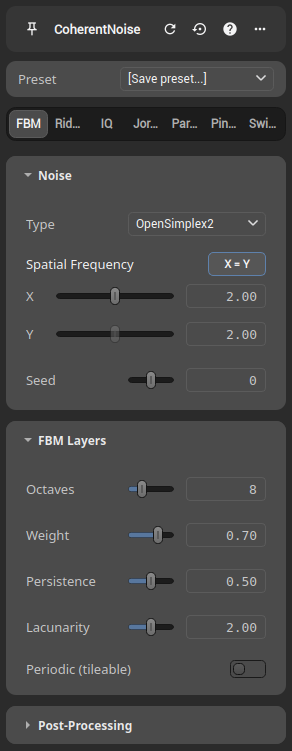
Overview
Primary Actions
| Button (tooltip) | What it does |
|---|---|
| Force Update | Re-runs this node's computation. |
| Reset Settings | Restores the node's initial (default) settings. |
| Help! | Opens the node's in-app documentation popup. |
Overflow Menu Actions (···)
| Action | What it does |
|---|---|
| Node Information | Opens the detailed node information dialog. |
| Backup State | Snapshots the current settings into the backup slot. |
| Revert State | Swaps the current settings with the backup slot. |
| Online Documentation | Opens the node's page in the online documentation. |
Force Update
Force Update re-runs the node's computation on demand. Nodes normally recompute automatically when an input or a parameter changes, so you rarely need this — it is handy when you want to force a fresh evaluation (for example after changing a setting that feeds randomness) without otherwise touching the graph.
Backup and Revert State (swap mechanism)
The Backup State and Revert State actions provide a manual two-slot swap mechanism for temporary state management during editing. The backup slot lives in memory and is not saved with your project.
How it works
- Backup State: Saves the current configuration into the backup slot.
- Revert State: Swaps the current configuration with the one stored in the backup slot.
This lets you toggle between two configurations, which is useful for quickly testing variations.
Example
- Start with a node in Config1.
- Click Backup State → Config1 is stored.
- Modify the node → it becomes Config2.
- Click Revert State → the node reverts to Config1, and Config2 is now stored.
- Click Revert State again → the node reverts to Config2, and Config1 is now stored again.
- This "swap" can continue back and forth.
Continuing with new changes
- If you're happy with Config2, click Backup State to overwrite the backup slot with Config2.
- Modify the node to reach Config3.
- Now, clicking Revert State will swap between Config2 and Config3.
Reset Settings
Reset Settings restores the node to its initial (default) settings. This is different from Revert State: Revert swaps with the snapshot you took, whereas Reset discards your changes entirely and returns the node to its defaults.
Node Presets
To permanently save, load, or manage presets for a node, use the Preset Dropdown located right above the parameters in the node settings panel. See the dedicated Node Presets page for details on using presets and configuring global preset collections.
Help and Online Documentation
The documentation buttons provide access to node reference material:
- Help!: Opens the node's documentation in an in-app popup, allowing you to read it without leaving Hesiod.
- Online Documentation: Opens the node's page on the online documentation in your default web browser.